
As a rental manager, you know the importance of having a quick and easy booking process. So, naturally, many choose to forego rental contracts to ensure there’s one less hoop your guests have to jump through. Luckily, that’s no longer an issue with electronic signature applications.A program like Signature, for instance, has the capability of creating legally binding documents that integrate fully with your channel manager. Both parties can sign the contracts electronically, so the entire process only takes a minute or two.
Since Signature integrates fully with Tokeet and Automata, the rental contract process can be fully automated.
Creating Your Rental Contract
If you don’t have a rental contract drafted already, now’s the time to get that sorted. For those who may have missed it, we have a rental contract writing guide. We’ll be using the example contract from that guide for demonstration purposes.
Download a free sample rental contract PDF here!
If you’re creating your own contract, it’s important to leave blank spaces in signatory areas as well as for booking and guest details. Signature is able to populate these fields automatically!
1. Log-in and go to the Templates page
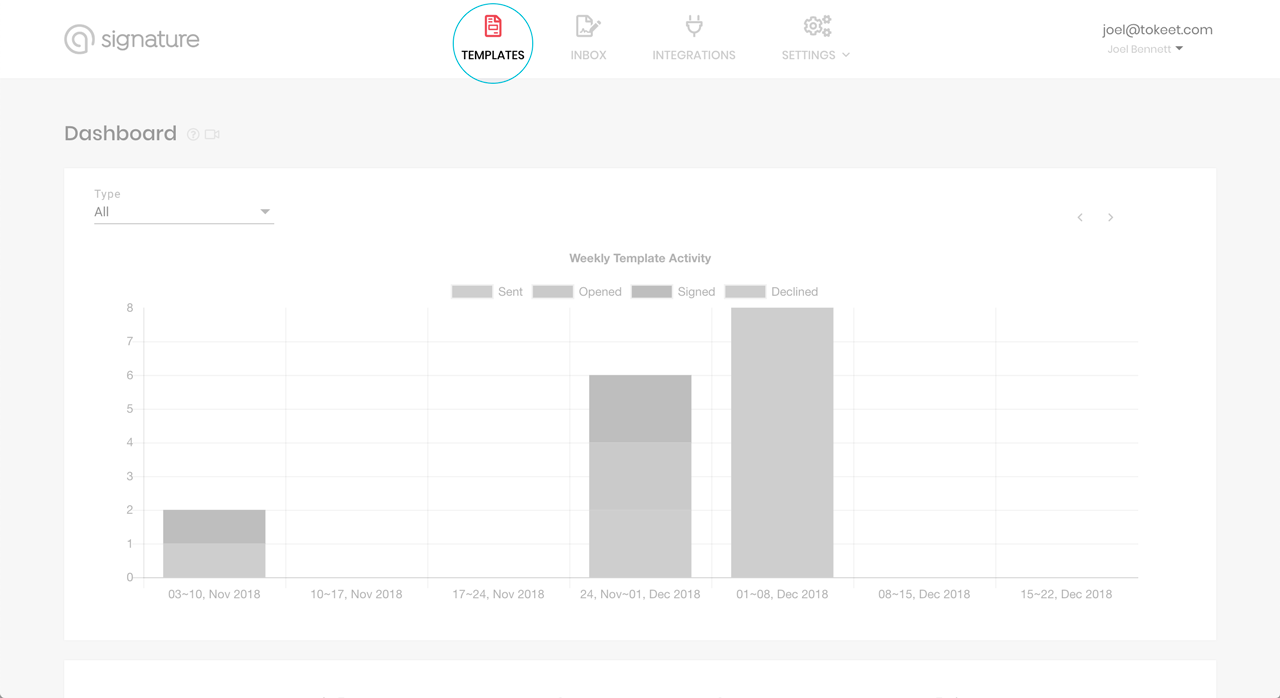
The starting page displays your recent activity
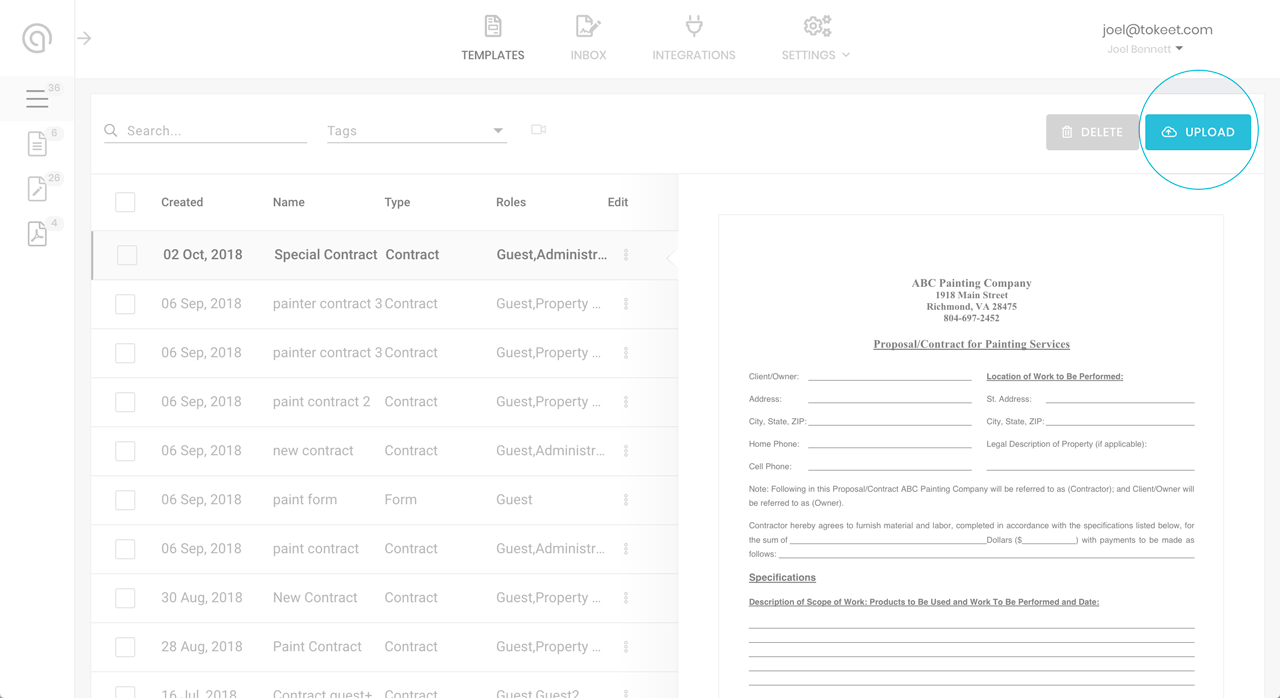
Click on the Upload button at the top of the Templates page
2. Upload & fill in your contract details
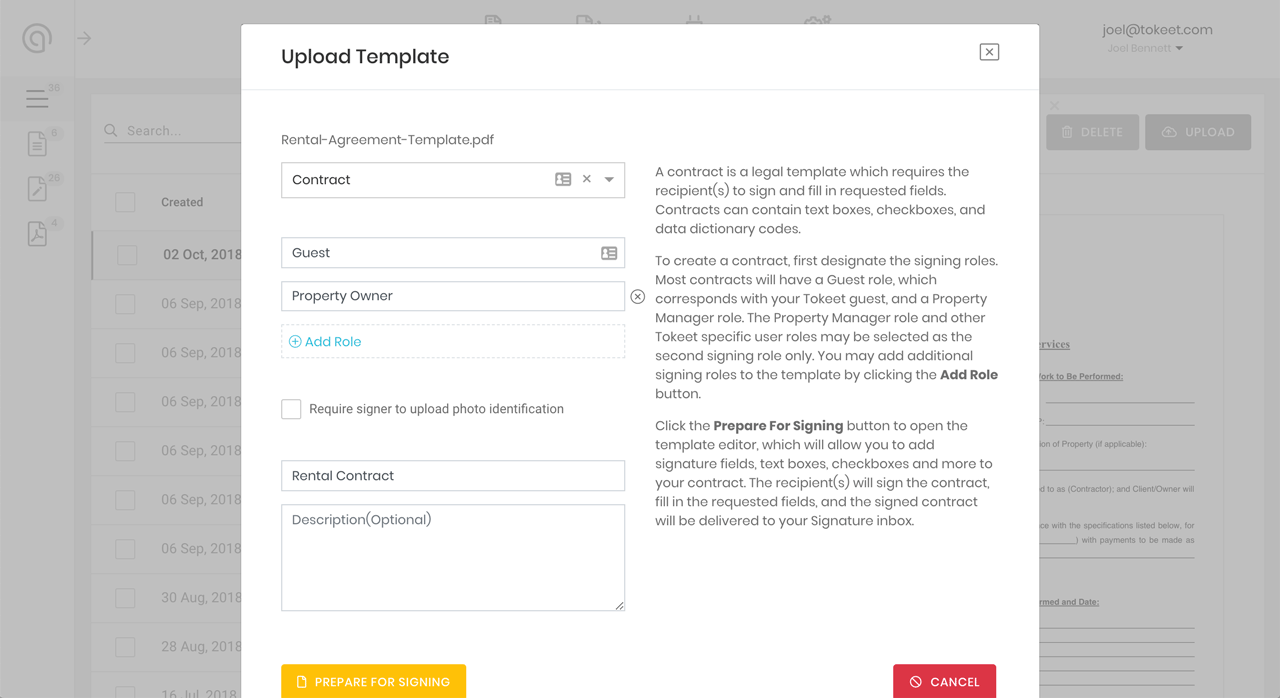
Select your rental contract file and upload it, then fill out the details. Make sure to add the Property Owner role before continuing.
3. Add booking detail & electronic signature fields
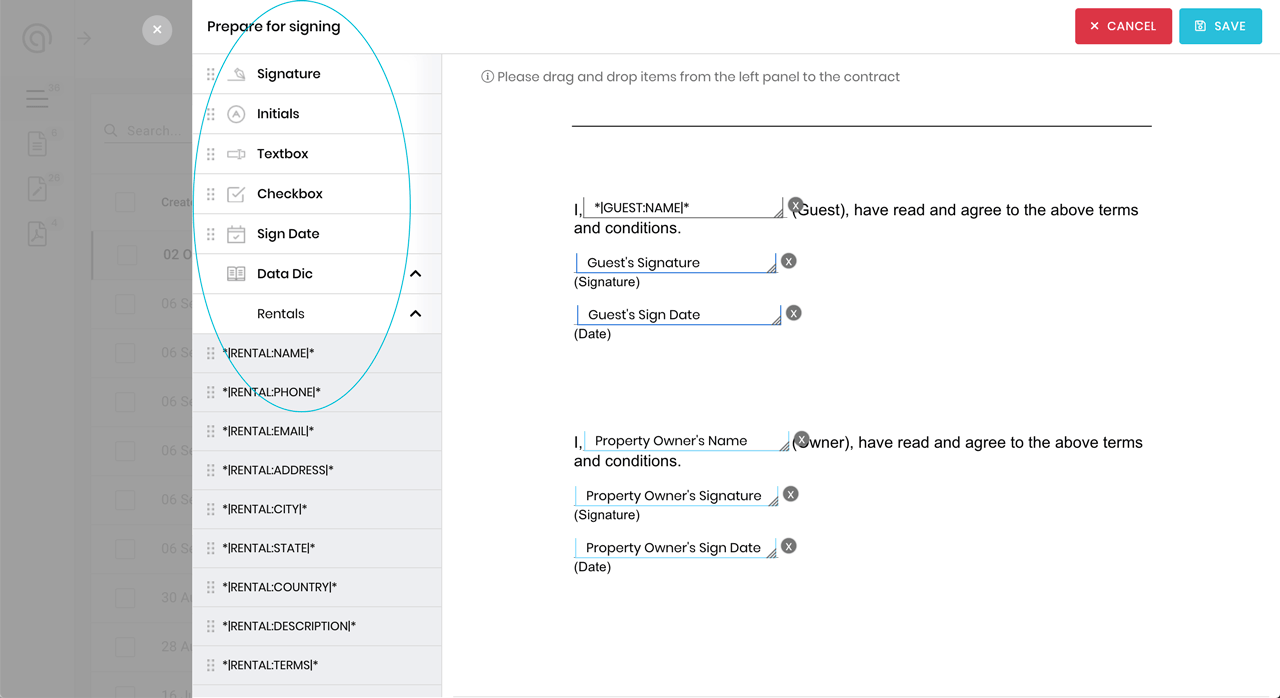
Click and drag items to their corresponding fields on the contract. Use the Data Dictionary menu for dynamic information, such as check-in dates and rental addresses.
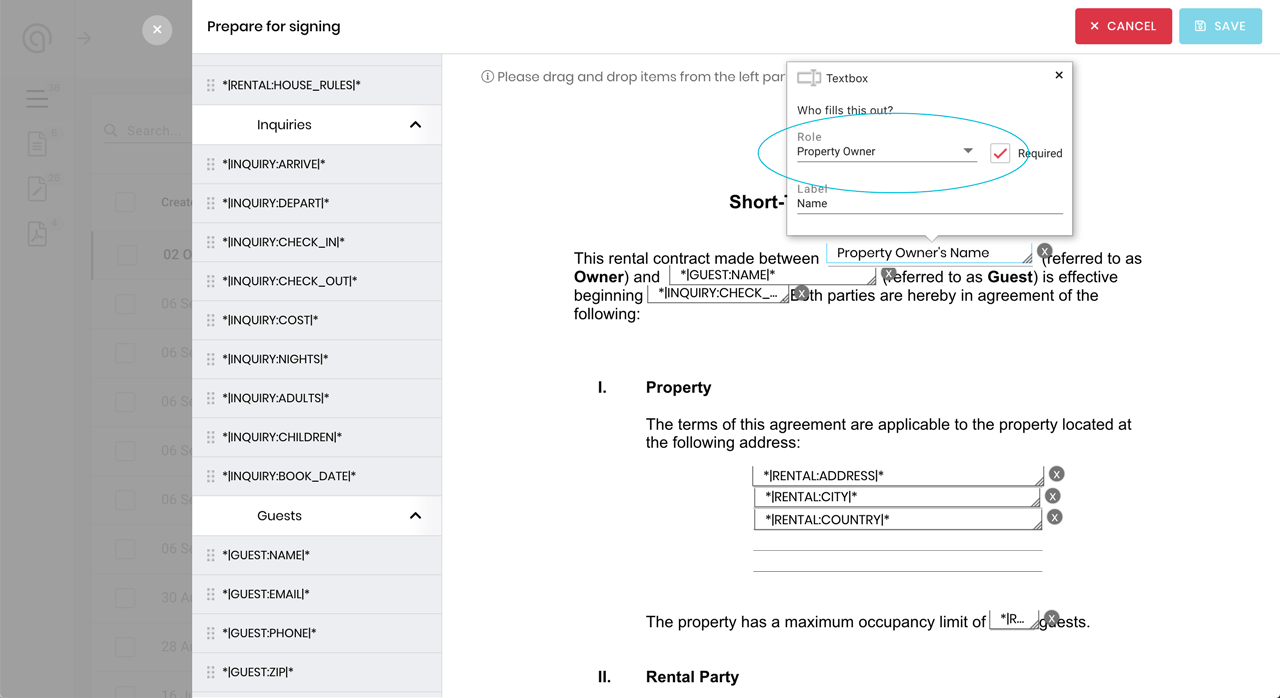
Remember to set the data fields to their intended roles (added earlier).
4. Create custom fields
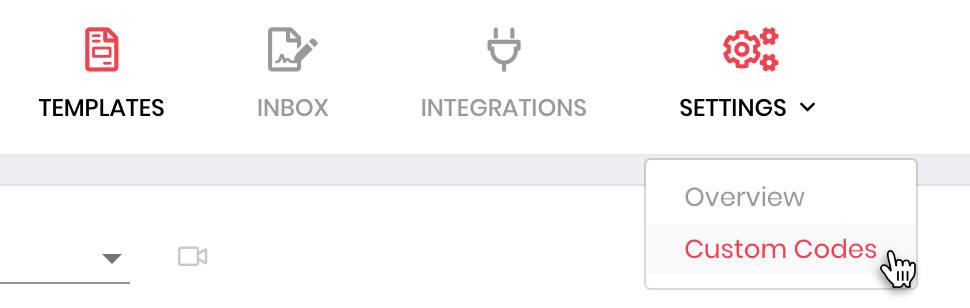
The Data Dictionary feature allows you to create custom codes for you to insert into your contracts and documents. This can be found on the Custom Codes page in the Settings menu:
 After you’ve saved your custom code, you may insert it into your documents: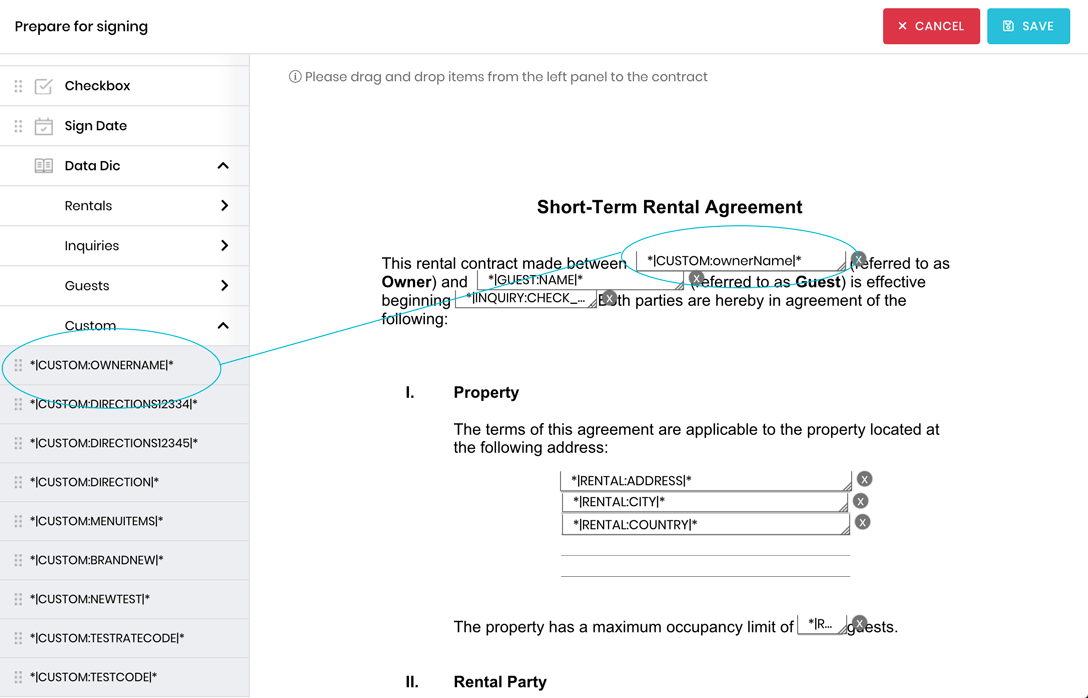
5. Save & Send
After saving, you have two options: send the contract manually, or incorporate it into an automated sequence in Automata.
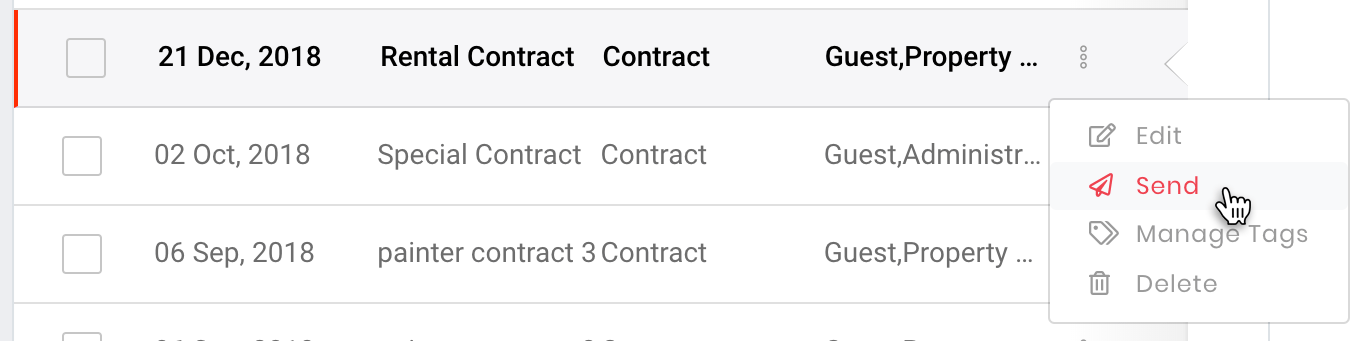
To send your rental contract manually, you just need to fill out sender & recipient details – click send and that’s it!
Electronic Signature
So what does the recipient receive?
First, both you (the property owner) and your guest will receive an email with a link to the contract: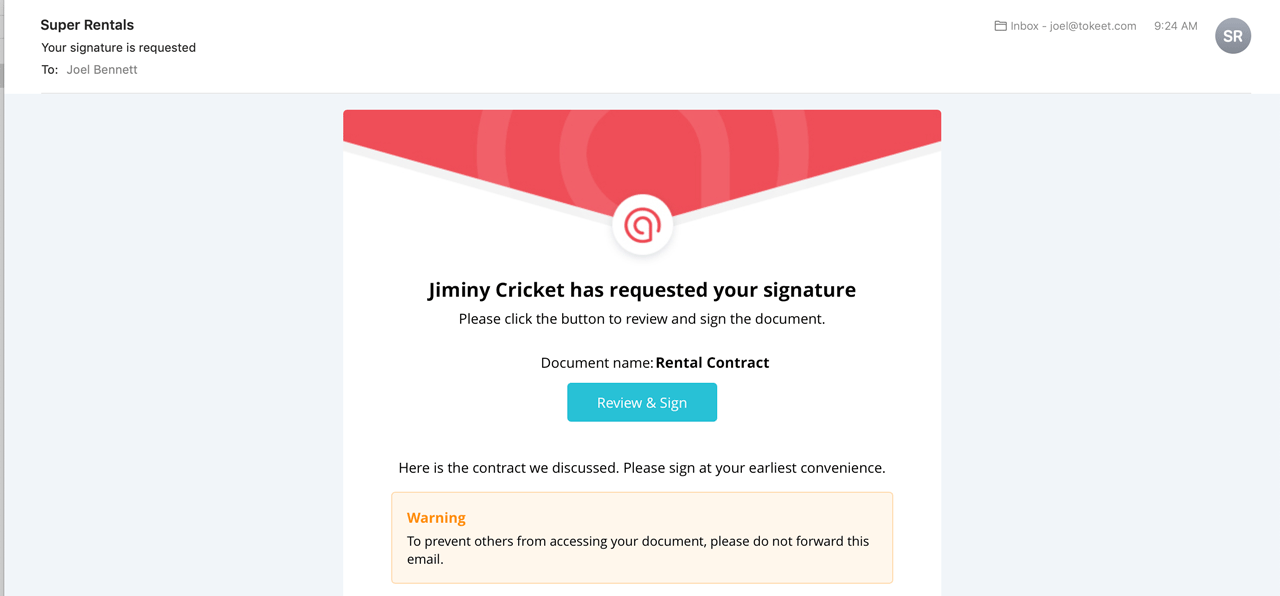 Both recipients will be able to review the document, fill in data fields assigned to them, and sign. A signature can be drawn in manually or uploaded as an image file: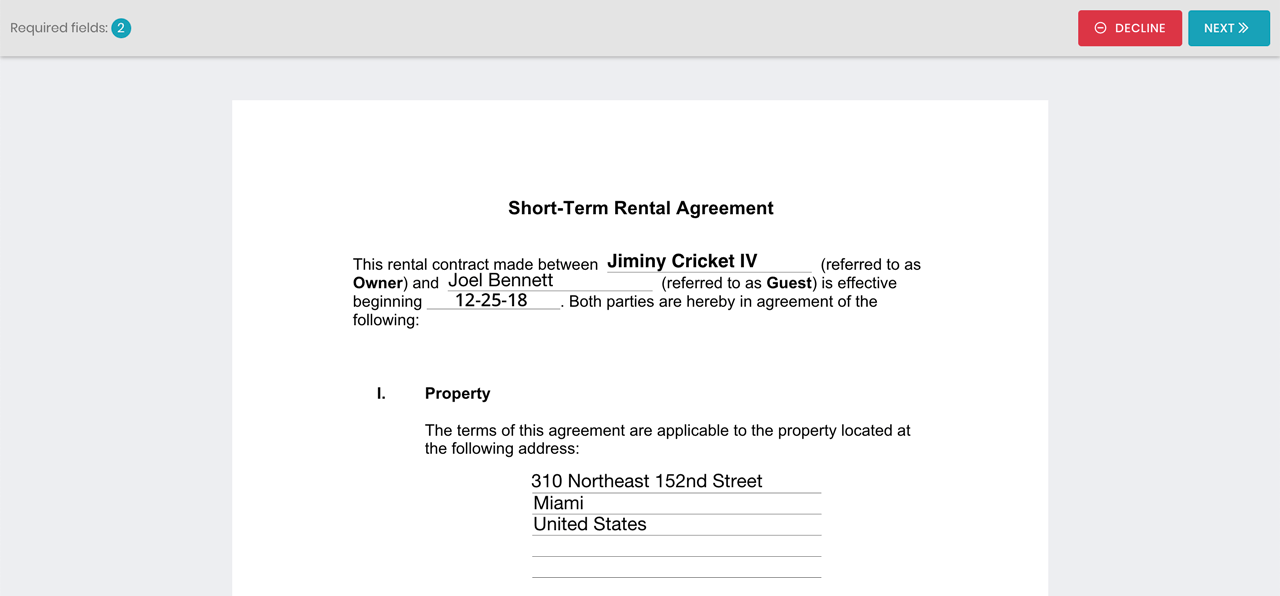
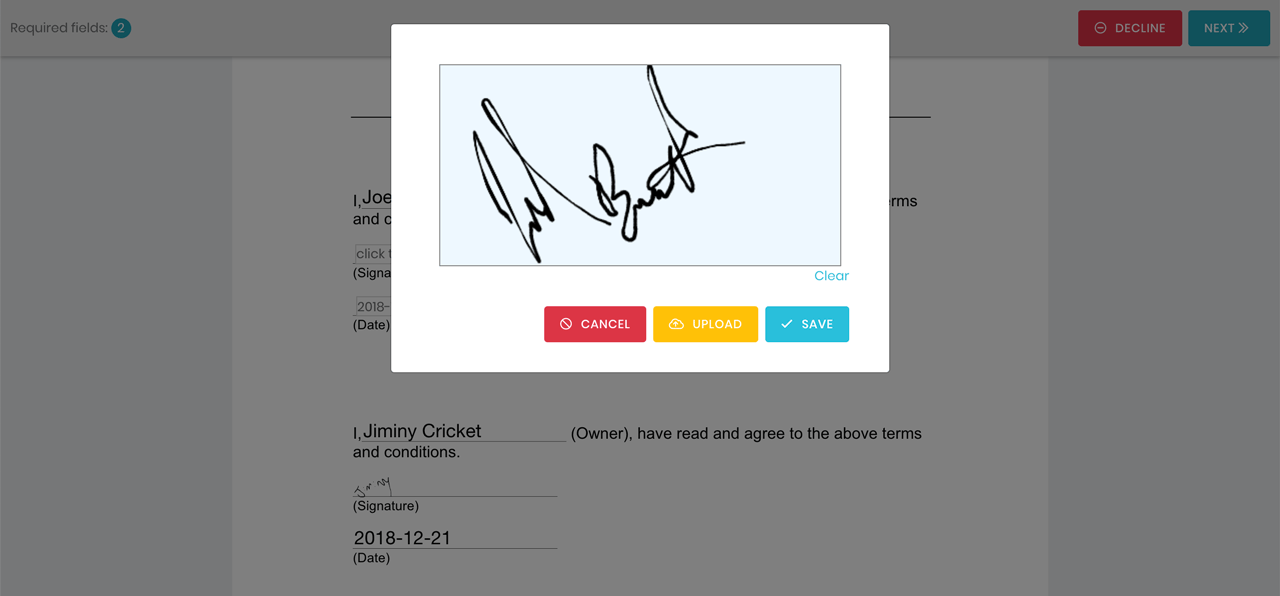
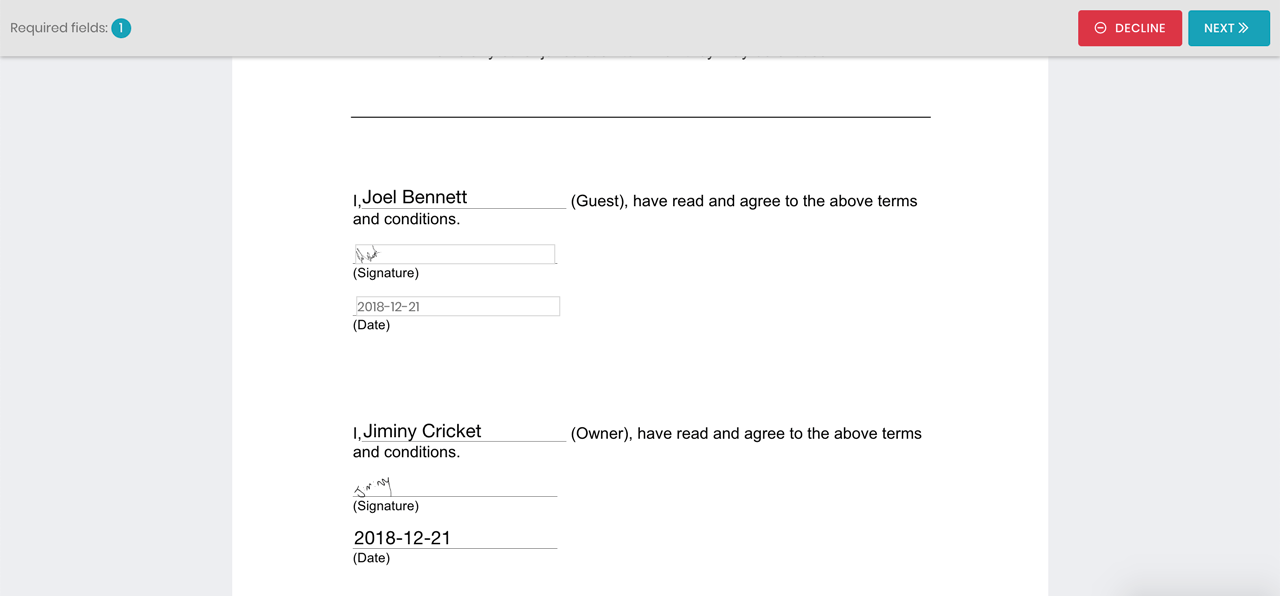
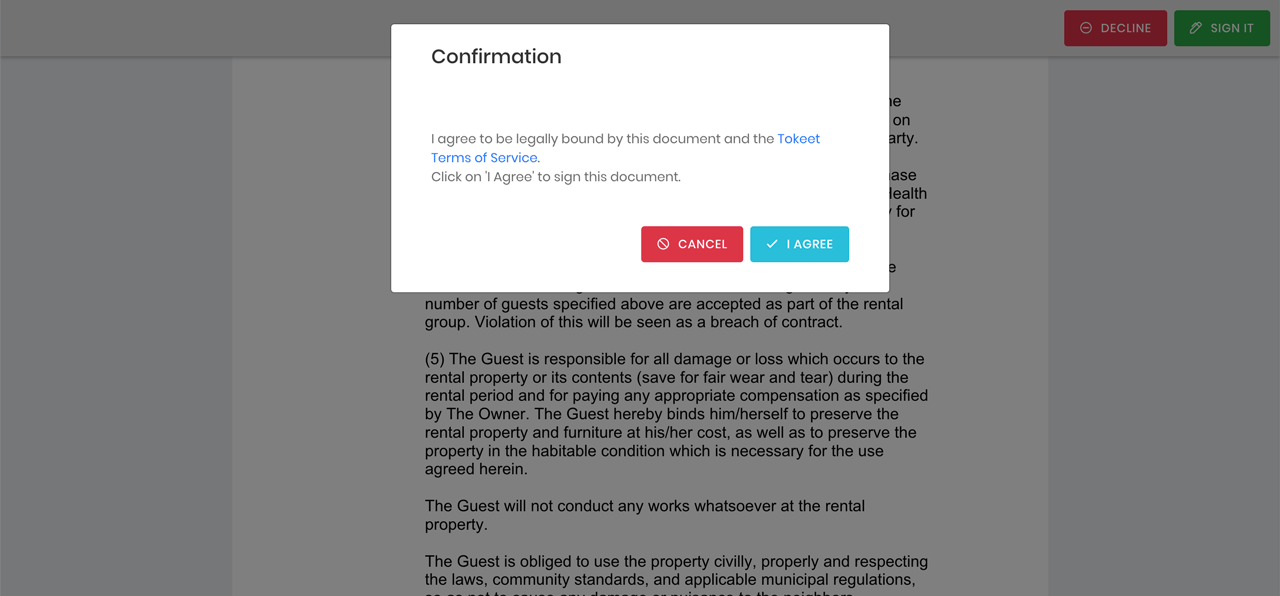 And that’s the end! You and your guest both have signed copies of your legally binding rental contract and the booking can proceed.

Welcome to Tokeet’s Podcast — your trusted source for insights, trends, and strategies shaping the vacation rental industry. Each episode features expert interviews, data-driven analysis, and practical tips to help property managers grow their businesses, improve guest experiences, and stay ahead in a rapidly evolving market. Whether you’re new to short-term rentals or managing a large portfolio, tune in to stay informed and inspired.
Some days just don’t work for a guest arrival, whether it’s a holiday, a maintenance window, or a turnover day your team can’t cover. This episode walks through check-in and check-out restrictions, the most requested feature in AdvanceCM, now live in the Rentals module. You’ll hear how to block arrivals or departures for a date range, such as December 24 to 26, and how to allow check-ins only on the weekdays you choose. We also cover channel-specific rules, like keeping Airbnb to Friday and Saturday arrivals while direct bookings stay open through Sunday. Finally, we explain what to check before switching rules on, from existing reservations to sync time and visibility on booking sites.
Key Takeaways:
✅ Block check-ins or check-outs for any date range
✅ Limit arrivals to the weekdays you choose
✅ Set different rules for each booking channel
✅ Existing reservations stay unchanged
✅ More restrictions mean fewer guests can book, so review rules each season
Related Links:
Company: https://www.tokeet.com/Blogs: https://www.tokeet.com/blog/Blog: Check-in and Check-out Restrictions: How to Set Them in AdvanceCM 👉 https://blog.tokeet.com/check-in-and-check-out-restrictions/
This is a public episode. If you would like to discuss this with other subscribers or get access to bonus episodes, visit podcast.tokeet.com